> ## Documentation Index
> Fetch the complete documentation index at: https://www.onuro.ai/docs/llms.txt
> Use this file to discover all available pages before exploring further.
# Customization
> Customization options for the AI
**Premium Feature**: Custom modes are available exclusively with a [Premium subscription](/pricing). Free users have access to basic customization features.
## Custom Modes
You can create custom modes to tailor the AI's behavior to your specific needs. Custom modes allow you to define how the AI should interact with your codebase.
To create custom modes, go to `Settings > Customization > Custom Modes`
Custom modes are perfect for creating specialized workflows, setting up domain-specific behaviors, or creating modes tailored to your team's coding standards.
## Customization Levels
Onuro offers two levels of customization that work together to provide flexible AI behavior:
### Global Customization
**Settings that apply to every chat in every project**
Global customization is perfect for preferences you want the AI to always remember, regardless of which project you're working on:
* Personal coding style preferences
* General interaction patterns you prefer
* Universal rules you want the AI to follow
* Global shortcuts or behaviors
### Project-Level Customization
**Settings that apply to every chat within a specific project**
Project-level customization allows you to define project-specific instructions that the AI will remember for that particular codebase:
* Project architecture patterns
* Specific coding standards for this project
* Framework-specific preferences
* Team conventions and guidelines
### How They Work Together
Both levels can be used simultaneously. The AI will consider both your global preferences and project-specific instructions when responding. This allows you to maintain consistent personal preferences while adapting to different project requirements.
Use global settings for your personal coding style, and project settings for team-specific conventions. This ensures the AI behaves consistently with your preferences while respecting project-specific requirements.
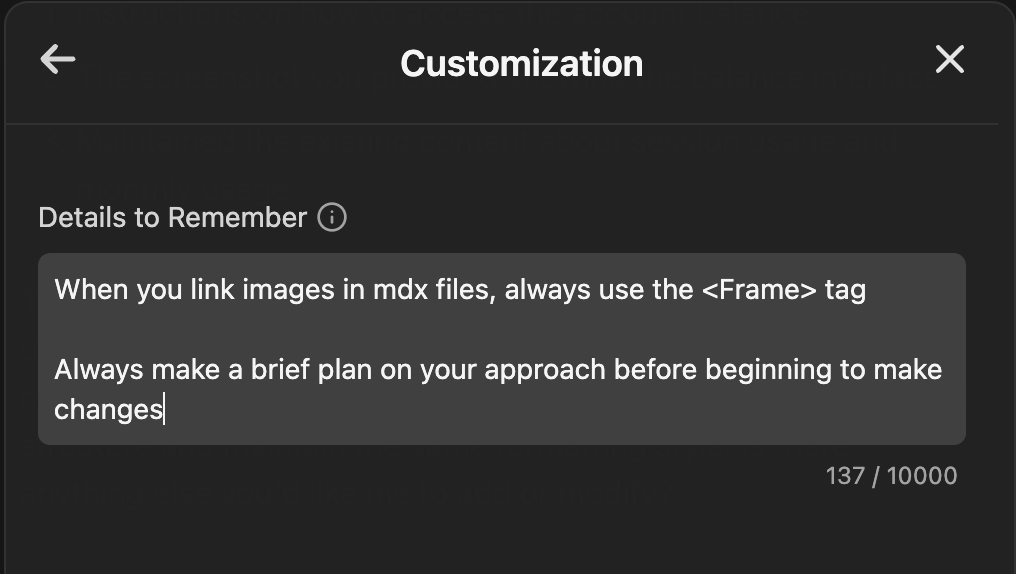
## Details to Remember
You can give the AI details to remember throughout all of your interactions if desired. This is useful for:
* Giving details about your project
* Instructing the AI on how to behave
* Instructing the AI on how to respond to keywords
* Instructing the AI on how to use tools
To add details to remember, go to `Settings > Customization > Details to Remember`