> ## Documentation Index
> Fetch the complete documentation index at: https://www.onuro.ai/docs/llms.txt
> Use this file to discover all available pages before exploring further.

# Context Management

> Our simple and effective solution for passing context to the AI

### File-Based Context

The primary way to manage context is through your project files:

1. **Currently Focused File**

* Your active editor tab is automatically included as context
* Highlight any text range to emphasize specific sections
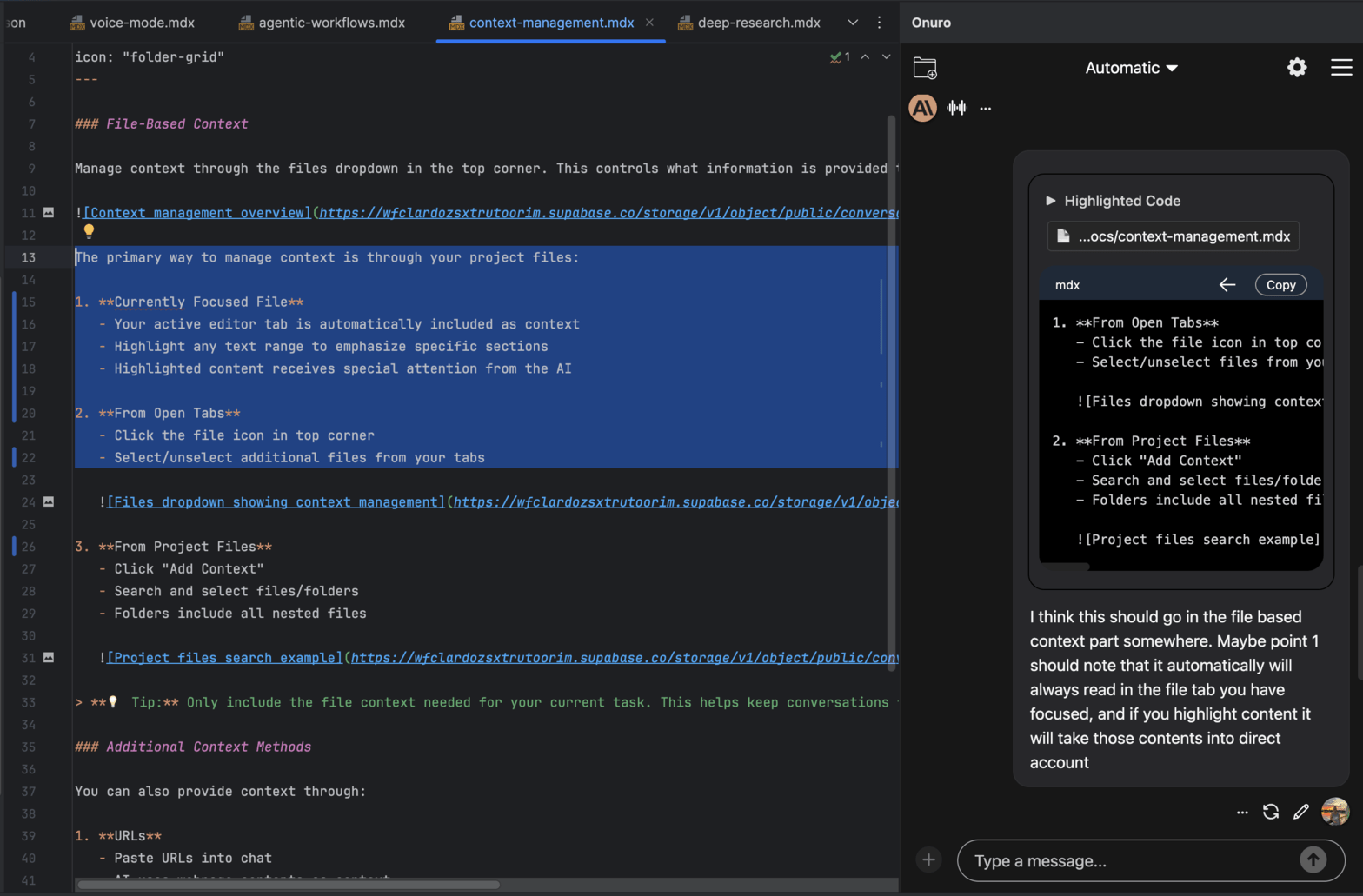
<Frame caption="Focused file and highlighting example" width="600" height="300">
  ![Focused file and highlighting example](https://wfclardozsxtrutoorim.supabase.co/storage/v1/object/public/conversationMedia/HicQNOtji5Ue7sd7xOTZ6E3eC3F2/8cbda5b1-b845-4192-ba85-356ccac7156e)
</Frame>

2. **From Open Tabs**

* Click the file icon in top corner
* Select/unselect additional files from your tabs
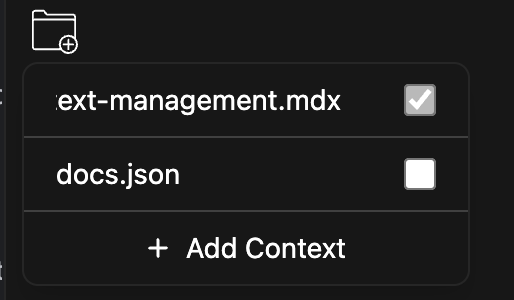
<Frame caption="Files dropdown showing context management" width="600" height="300">
  ![Files dropdown showing context management](https://wfclardozsxtrutoorim.supabase.co/storage/v1/object/public/conversationMedia/HicQNOtji5Ue7sd7xOTZ6E3eC3F2/740e4a5b-db69-4637-969d-7b9ddc8e8127)
</Frame>

3. **From Project Files**

* Click "Add Context"
* Search and select files/folders
* Folders include all nested files
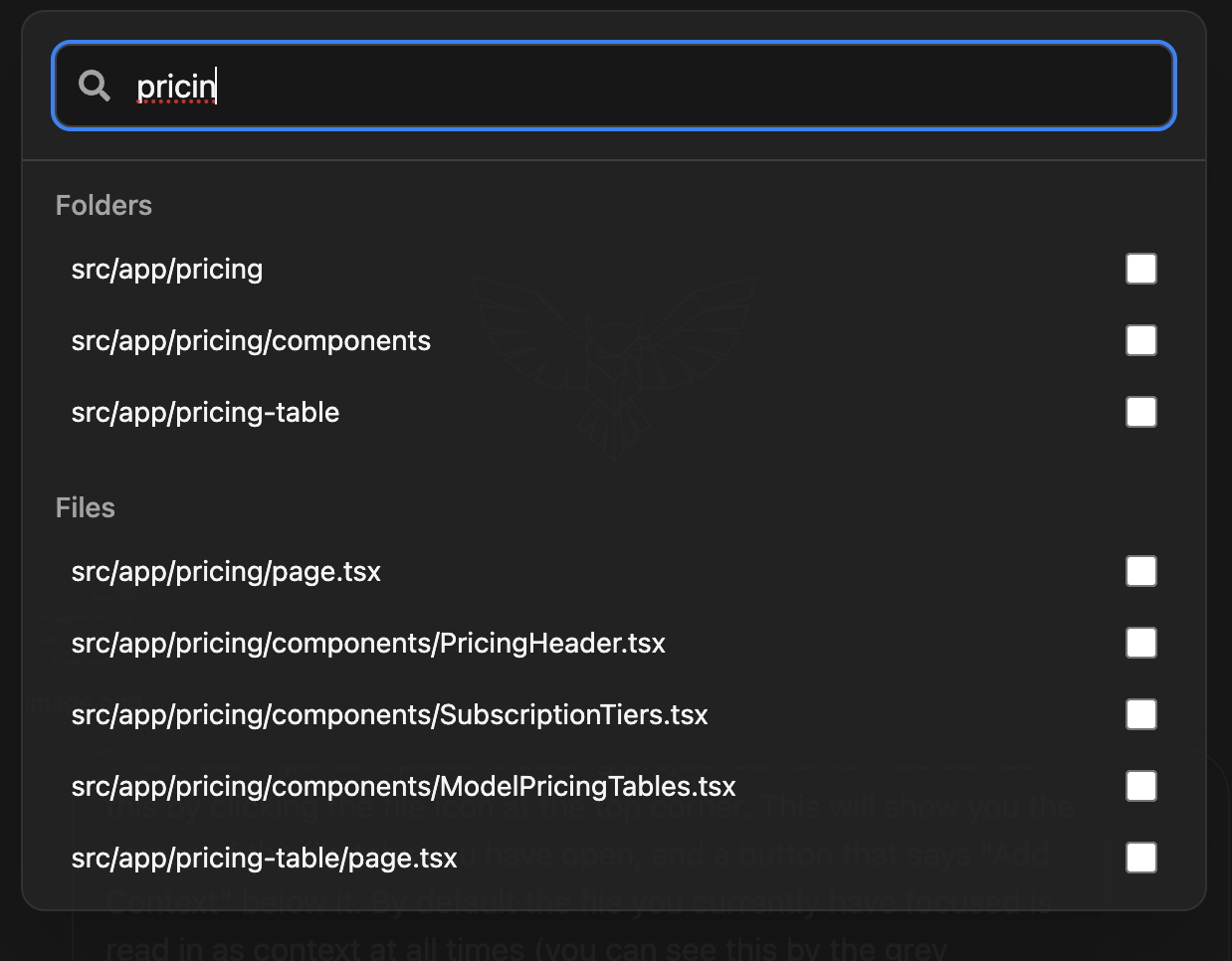
<Frame caption="Project files search example" width="600" height="300">
  ![Project files search example](https://wfclardozsxtrutoorim.supabase.co/storage/v1/object/public/conversationMedia/HicQNOtji5Ue7sd7xOTZ6E3eC3F2/de00b24a-4f90-4760-89ce-6053dd173805)
</Frame>

<Tip>Only include the file context needed for your current task. This helps lower cost AND improve output quality.</Tip>

### Additional Context Methods

You can also provide context through:

1. **URLs**

* Paste URLs into chat
* AI uses webpage contents as context
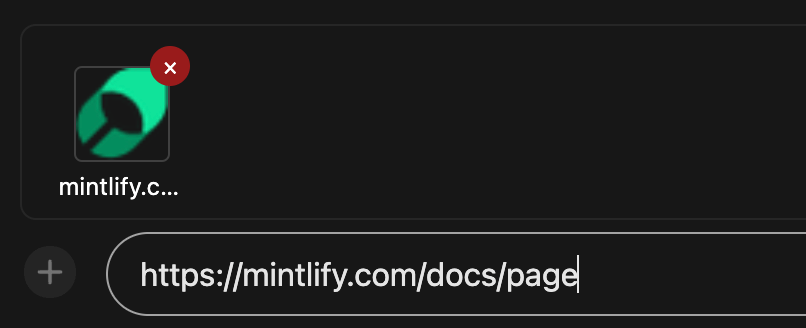
<Frame caption="URL context example" width="600" height="300">
  ![URL context example](https://wfclardozsxtrutoorim.supabase.co/storage/v1/object/public/conversationMedia/HicQNOtji5Ue7sd7xOTZ6E3eC3F2/0e499cb4-f352-48a4-8885-883a55436f5e)
</Frame>

2. **Uploads**

* Use upload icon in bottom corner
* Supports documents, images, audio, and video
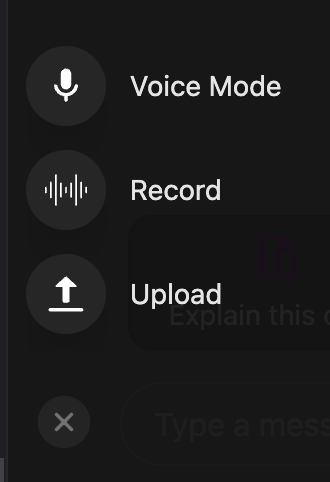
<Frame caption="Upload interface options" width="600" height="300">
  ![Upload interface options](https://wfclardozsxtrutoorim.supabase.co/storage/v1/object/public/conversationMedia/HicQNOtji5Ue7sd7xOTZ6E3eC3F2/4b363a59-b44c-49e6-905d-296c29b9eec2)
</Frame>

### Conversation Context Management

By default, only the 5 most recent back-and-forth turns in a conversation are kept as context. This automatic management helps maintain an optimal price/performance ratio while keeping the most relevant context.

To preserve specific messages from earlier in the conversation:

1. Click the three dots menu next to any message
2. Select "Set as Important"
3. The message will be marked with a flag 🚩 and kept in context
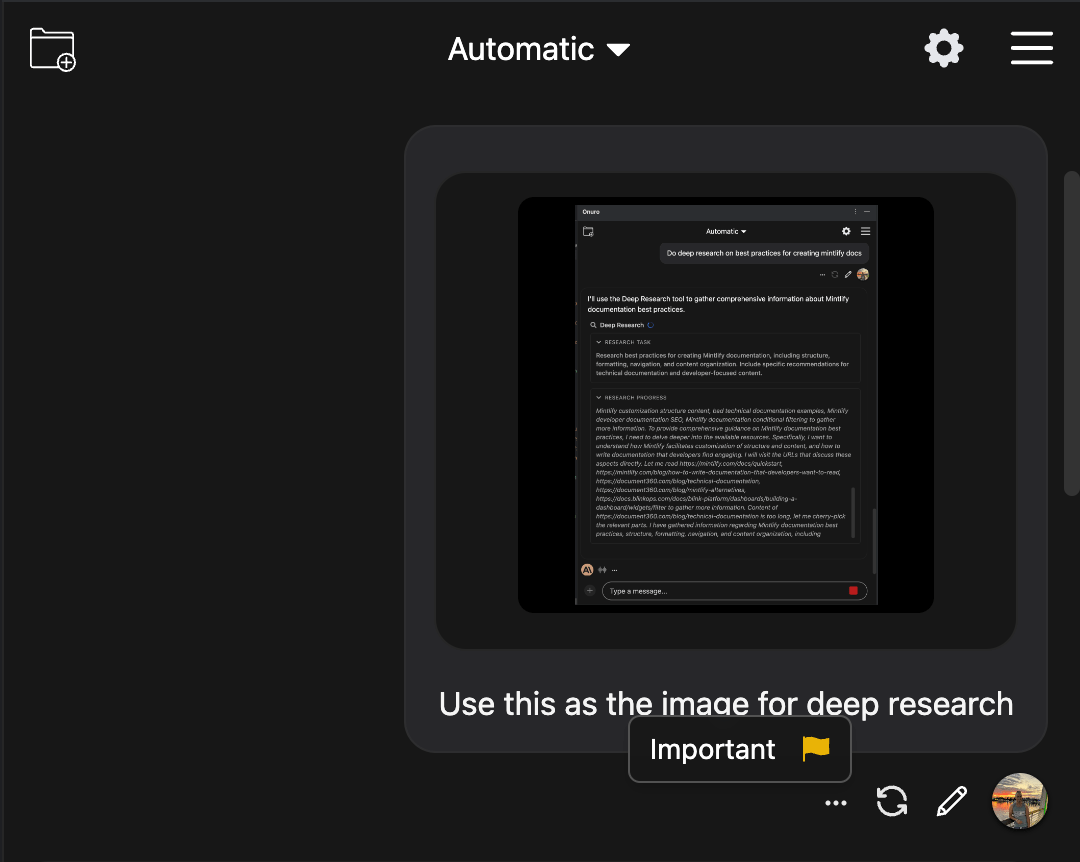
<Frame caption="Setting a message as important" width="600" height="300">
  ![Setting a message as important](https://wfclardozsxtrutoorim.supabase.co/storage/v1/object/public/conversationMedia/HicQNOtji5Ue7sd7xOTZ6E3eC3F2/1139ccc2-f1b6-4358-9f04-0996be26b677)
</Frame>

<Tip>Use the Important flag for key information or instructions you want the AI to remember throughout the conversation.</Tip>
